
Local LLM Setup Guide: Run AI Models on Your PC
Learn how to set up and run large language models (LLMs) on your local computer. This guide covers hardware, software, and troubleshooting for privacy and…
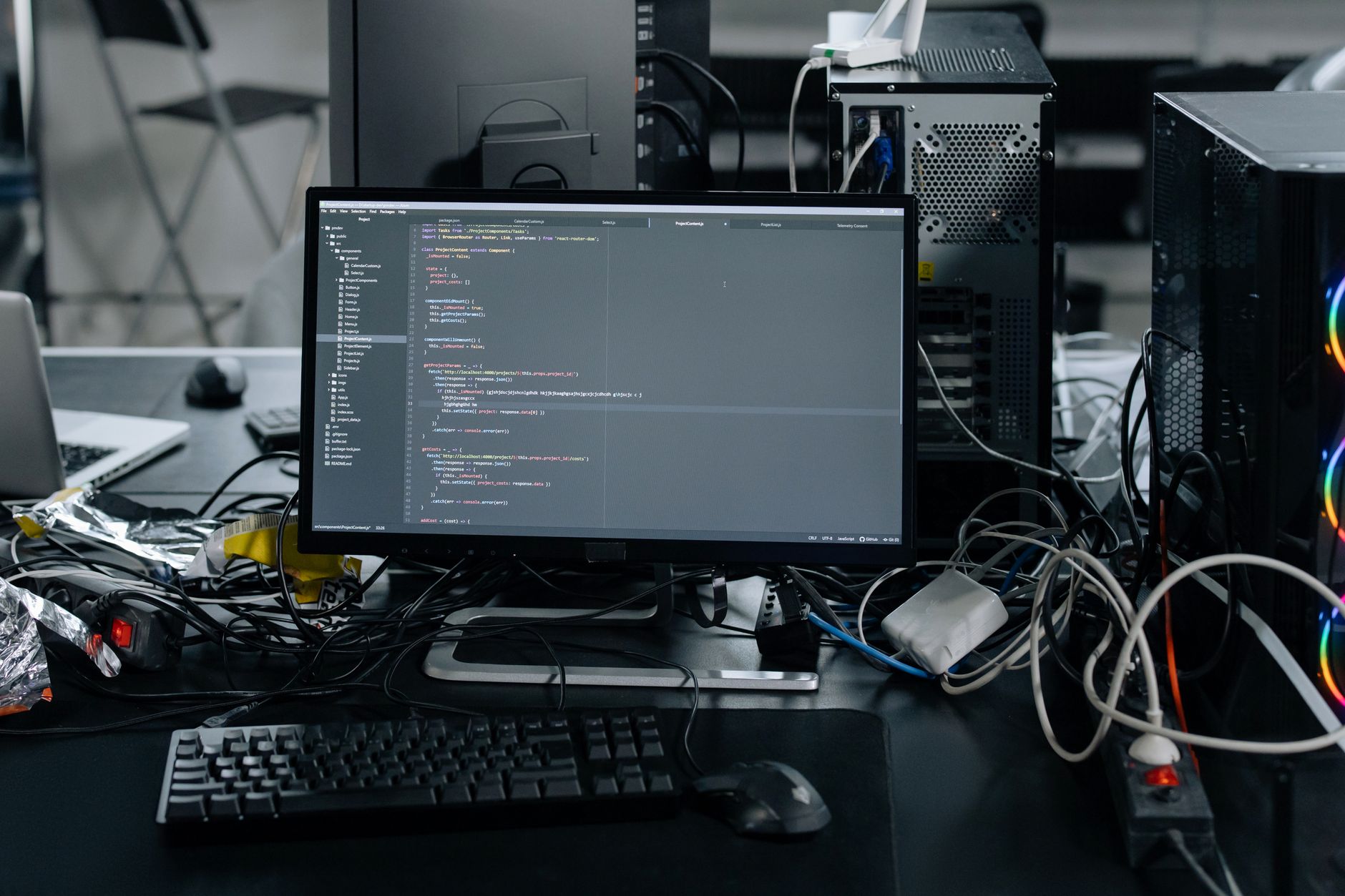
Running large language models (LLMs) locally on your own computer offers significant advantages over cloud-based solutions. This approach provides complete data privacy, as your information never leaves your machine. It also leads to lower and more predictable costs at scale, reduced latency for faster responses, and greater control over your AI interactions.
This guide will walk you through the practical steps and hardware considerations necessary to get an LLM operational on your local machine. The focus is on matching model choice to your available hardware, particularly Video RAM (VRAM), to ensure a smooth and usable experience.
Understanding Local LLM Hardware Requirements
The success of running an LLM locally hinges primarily on your system's hardware capabilities. Unlike general computing tasks, LLMs are intensely demanding on specific components, especially the graphics card.
Graphics Card (GPU) and VRAM
Your GPU's Video RAM (VRAM) is the single most important factor. LLM models load directly into VRAM for fast inference. A general rule of thumb for fitting models into VRAM is approximately 0.6 GB of VRAM per billion parameters at 4-bit quantization (Q4_K_M).
- Entry-level (7B models): For models like Mistral or Phi-4 Mini, 4-5 GB VRAM at Q4_K_M is needed. An 8 GB VRAM card, such as an RTX 4060 8 GB, is highly recommended as the best entry-level GPU. The RTX 3060 12 GB is also suitable for smaller models due to its higher VRAM.
- Mid-range (14B models): Models like Qwen3 14B typically require around 12 GB VRAM.
- High-end (24-32B models): For larger models such as Qwen3.6 27B or DeepSeek-R1 32B, expect to need 16-24 GB VRAM.
- Enthusiast (70B models): Running models like Llama 3.3 requires substantial VRAM, often 40-48 GB, which may necessitate setups with dual RTX 5090s or an M5 Max Apple Silicon Mac with 128 GB unified memory.
System RAM (CPU Memory)
While VRAM is crucial, adequate system RAM is also necessary, especially if your VRAM is limited and the LLM offloads layers to the CPU. 16 GB of system RAM is considered a practical minimum for running smaller LLMs, while 32 GB is recommended for 13B+ models or for running multiple applications alongside your LLM.
Processor (CPU)
A modern CPU is important for overall system responsiveness and for handling portions of the model if VRAM is insufficient. While GPU acceleration is crucial for good performance, the CPU still plays a supporting role. CPU-only inference is significantly slower than GPU-accelerated inference.
Storage
LLM model files are large, often ranging from several gigabytes to tens of gigabytes each. An NVMe SSD is strongly recommended for fast loading times. You should allocate 100–500 GB of free space for model files, with 1 TB to 2 TB NVMe being ideal for users who wish to experiment with multiple models and datasets.
Choosing Your Local LLM
The vast ecosystem of LLMs offers many choices, but matching the model to your hardware is paramount. Quantization plays a key role in making larger models fit into consumer-grade VRAM.
Understanding Quantization
Quantization is a technique that reduces the precision of the model's weights (e.g., from 16-bit to 4-bit integers). This significantly shrinks the model file size and VRAM footprint, allowing larger models to run on less powerful hardware. However, heavy quantization can sometimes reduce the model's accuracy, particularly for tasks requiring high precision like code generation.
Recommended Models for Local Deployment
Popular and efficient models for local deployment include:
- 7B Models: Mistral, Phi-4 Mini, Llama 4 (available through Ollama) are excellent starting points. These models offer a good balance of performance and resource requirements.
- Larger Models: For users with more VRAM, Qwen3 14B or DeepSeek-R1 32B offer increased capability.
Always prioritize a smaller, well-quantized model that runs smoothly over a larger, slow, or unusable one. A 7B model running at full speed will provide a much better experience than a 70B model constantly struggling with Out of Memory errors.
Step-by-Step Local LLM Setup Guide
Setting up a local LLM involves preparing your hardware, installing a runner application, downloading a model, and then interacting with it.
1. Prepare Your Hardware
Before beginning, verify your machine meets the minimum VRAM, system RAM, CPU, and storage requirements for your chosen model size. Ensure your GPU drivers are up-to-date to enable proper acceleration. For Apple Silicon Macs, ensure your macOS is updated to leverage optimized Metal performance.
2. Install a Runner or Framework
User-friendly tools simplify the process of running LLMs locally. Two dominant ecosystems are:
- Ollama: Visit ollama.com to download and install. Ollama provides a command-line interface and an API for easy interaction. It's known for its broad model support and ease of use.
- LM Studio: Visit lmstudio.ai to download and install. LM Studio offers a graphical user interface (GUI) for browsing, downloading, and running models, making it very accessible for beginners.
- Jan.AI: Another user-friendly GUI option, similar to LM Studio.
3. Download an LLM Model
Once your runner is installed, you can download models:
- Using Ollama:
- Open your terminal or command prompt.
- Start the Ollama server by typing
ollama serve(this might run automatically after installation). - Download a model using the command:
ollama pull [model_name]. For example, to download Llama 3, typeollama pull llama3. Ollama automatically handles quantization.
- Using LM Studio:
- After installation, open the LM Studio application.
- Navigate to the "Home" or "Discover" tab within the GUI.
- Browse for a quantized model (e.g., search for "Llama 3" and look for a
.gguffile, often with a Q4_K_M tag). - Click the "Download" button next to your chosen model.
- From Hugging Face: Advanced users can download model files directly from Hugging Face via Python scripts using the
huggingface_hublibrary, then load them with frameworks like Llama.cpp.
4. Load and Run the Model
Once downloaded, you can interact with your LLM:
- In Ollama:
- Ensure the Ollama server is running.
- Open your terminal and type:
ollama run [model_name](e.g.,ollama run llama3). - You will then be in a chat interface where you can type your prompts.
- In LM Studio:
- Open LM Studio and go to the "Chat" tab.
- Select your downloaded model from the dropdown menu.
- Ensure GPU acceleration is enabled in the settings if available and your system supports it.
- Type your prompt into the chat box.
5. Integrate and Interact
Beyond the basic chat interface, you can integrate your local LLM into other applications or custom scripts:
- API Access: Ollama and LM Studio expose local APIs, allowing you to send prompts and receive responses programmatically using tools like Python's
requestslibrary. - Other Tools: Applications like AnythingLLM can connect to your local Ollama server to create knowledge bases and chat interfaces.
Common Challenges and Troubleshooting
Users often encounter specific issues when setting up local LLMs. Knowing how to address these can save significant time and frustration.
- Out of Memory (OOM) Errors: This is the most frequent issue, almost always due to insufficient VRAM for the chosen model size or quantization level.
- Solution: Try a smaller model, a more heavily quantized version (e.g., Q2_K or Q3_K_M instead of Q4_K_M), or free up VRAM by closing other GPU-intensive applications.
- GPU Not Detected / Slow CPU Inference: Your system might default to CPU if the GPU isn't properly configured or drivers are missing.
- Solution: Ensure your graphics card drivers are up-to-date. Check the settings within your runner (e.g., LM Studio) to confirm GPU acceleration is enabled.
- Choosing Models That Are Too Large: Downloading the largest available model without considering hardware capabilities often leads to unusable performance.
- Solution: Start small. A 7B model running smoothly is far more useful than a 70B model that constantly lags or crashes. Gradually increase model size as you understand your hardware's limits.
- Connection Refused / API Errors: Issues with the local server (e.g., Ollama, LM Studio) not running or ports being in use.
- Solution: Verify that the runner application is actively running. Check for conflicting applications using the same port. Restart the runner.
- Garbled or Repetitive Output: Can indicate corrupted model files or incorrect chat formats.
- Solution: Redownload the model. Ensure you are using the correct chat template if available (some models require specific prompt formatting).
- Quantization Impact: Heavy quantization, while necessary for VRAM, can reduce model precision.
- Caveat: LLMs may struggle with complex code generation or highly precise tasks when heavily quantized. Understand the trade-offs.
- Context Window Limits: While models advertise large context windows, performance can degrade when running heavily quantized models on consumer hardware, especially if the full context cannot fit into VRAM.
- Caveat: Be realistic about the usable context window on your local setup.
Local LLMs vs. Cloud-Based Solutions
Local LLMs offer compelling advantages, particularly regarding cost and privacy. On-premises inference can cost around $0.11 per million tokens, compared to approximately $2.00 for cloud APIs, representing an 18x difference at production volume. This makes local deployment highly attractive for sustained, high-volume use.
However, cloud-based solutions often provide access to the absolute frontier models with larger parameter counts and more extensive training, which may outperform local models in raw capability for certain complex tasks. The choice between local and cloud depends on your specific priorities: privacy and cost control versus bleeding-edge performance and ease of access to the largest models.
By carefully considering your hardware and choosing appropriate models, you can successfully deploy powerful AI capabilities directly on your personal computer, gaining unparalleled control and privacy over your AI interactions.
Frequently Asked Questions
Which specific model is best for my hardware configuration (e.g., 8GB VRAM, 16GB RAM)?
For 8GB VRAM, a 7B model (like Mistral or Phi-4 Mini) at Q4_K_M quantization is generally recommended. With 16GB system RAM, you can run these models effectively.
How do I optimize performance for specific tasks like code generation or summarization?
Optimizing involves selecting a model specifically fine-tuned for that task and ensuring sufficient VRAM to avoid heavy quantization, which can degrade performance in tasks like code generation.
Can I run local LLMs on an Apple Silicon Mac, and what are the specific benefits/limitations?
Yes, Apple Silicon Macs are well-suited for local LLMs, leveraging their unified memory architecture. Benefits include efficient performance, while limitations depend on the total available unified memory, especially for larger models.
Sources
Last updated: 2026-10-15
Photo: cottonbro studio / Pexels
Reader Responses (0)
No approved comments yet. Be the first to share your perspective!